
Building for scale, clarity, and your workflow
.png)
This month, we focused on making Formaloo more flexible for teams while refining the details that matter in your daily work. Whether you're managing complex projects, migrating from older setups, or just trying to get forms to look exactly right, we've been listening.
Team collaboration
New team management & access levels

We introduced Teams: a system that lets your workspace mirror how your organization actually works. Think of each workspace as a company: now you can create departments, assign people to them, and use those teams to shape who sees what and who owns what.
Here's how it works:
• Create and manage teams: Workspace admins can create, edit, and delete teams directly from the Workspace Members page. Teams are global to your workspace, so the structure is visible to everyone.
• Flexible membership: Users can belong to zero, one, or multiple teams. Adding or removing someone from a team is a quick multi-select. Teams show up next to each member's name, and you can filter by team to see composition at a glance.
• Teams in the Share tab: When sharing projects or folders, teams now appear alongside individual members. You can also add brand-new workspace members directly from the Share sidebar, no need to go through the Members page first.
• Assign tasks to teams: (Enterprise) The Assignee field now supports teams, not just individuals. Assign a task to a department and every member of that team sees it. (More on this in the task assignment section below.)
• Streamlined access levels: We took this opportunity to clean up the access level system, removing unnecessary layers that added confusion without adding real control. Fewer options, clearer permissions.
If you've been managing a growing team and permission sprawl has been slowing you down, this is the update to pay attention to.
Try it now → Set up your first team in Workspace Members.
Assign tasks to team members & teams

You can now assign tasks directly to specific team members within Formaloo. When you create or edit a task, you'll see a new assignee field that lets you delegate work to the right person. No more ambiguous ownership or lost follow-ups, just clear accountability.
This is especially useful for:
- Operations teams tracking approval processes
- Project managers coordinating workflows
- Customer-facing teams managing incoming requests
👉 Learn more about the assignee field in Formaloo and how to use it
📍 Included in: Add-ons (contact support for pricing)
PDF & workflows
PDF templates & examples
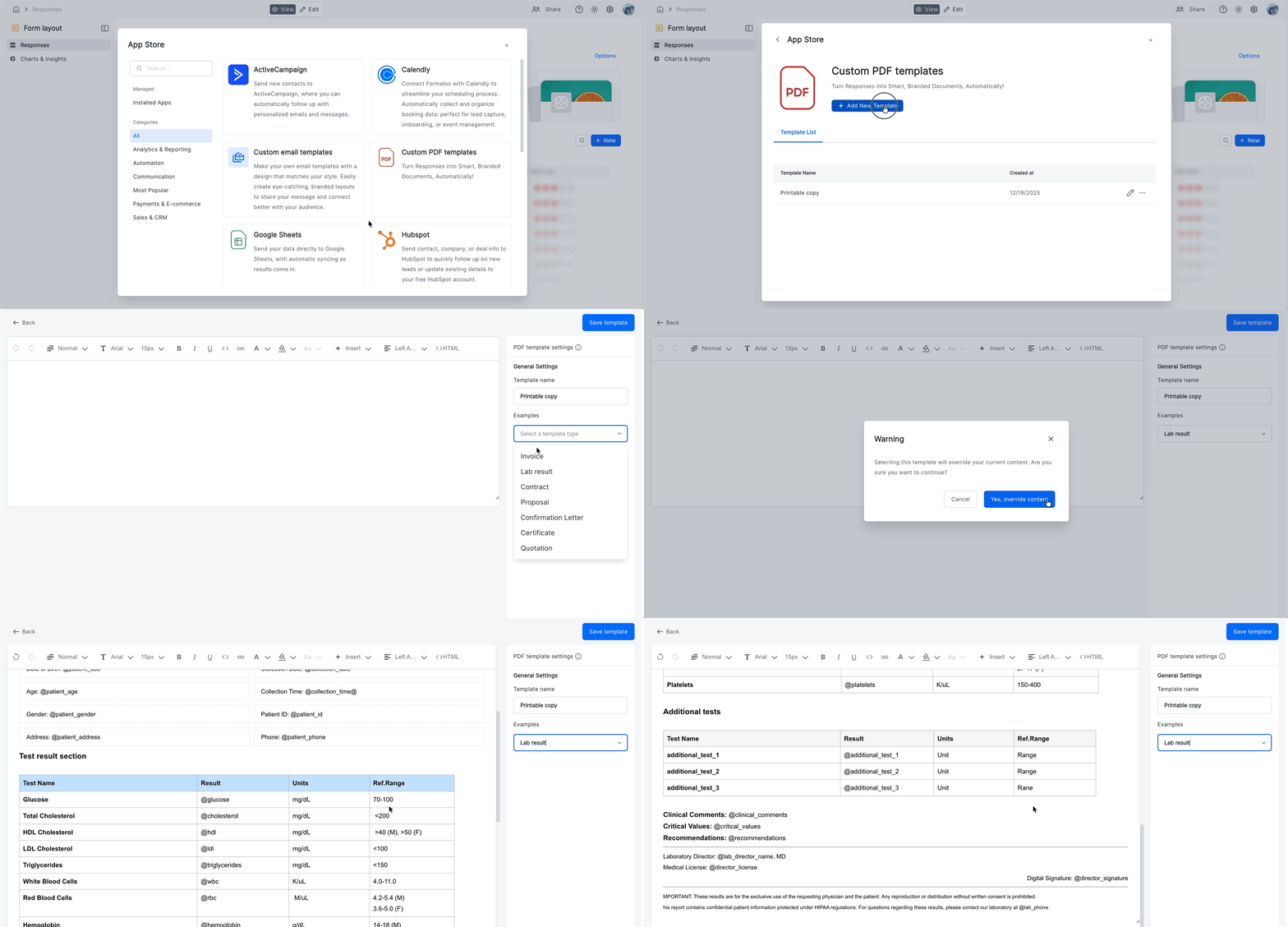
We've added ready-to-use PDF templates so you can start generating professional documents faster. Browse templates for invoices, reports, certificates, contracts, and more, then customize them to match your brand.
Each template includes:
- Pre-configured layouts and styling
- Smart field mapping examples
- Common use case documentation
You can use the PDF templates to print a signed form or contract as a PDF and email a signed form or contract as a PDF attachment. Whether you're automating client invoices or generating weekly reports, you'll find examples that get you 80% there.
Try it now → Browse PDF templates and start customizing.
Google Sheets: PDF links + row deletion sync
Your Google Sheets integration now automatically tracks two things it couldn't before: the PDFs you generate and the rows you delete.
Here's what changed depending on your sync type:
Two-way sync adds one new column: PDF links, which contains the URLs of any PDFs auto-generated for each response. If automatic PDF generation is enabled on your form, the links populate as submissions come in. If it's not enabled, the column still appears (but stays empty) so that when you do turn it on later, everything lines up without disrupting your sheet.
One-way sync adds two new columns: PDF links (same as above) and Formaloo ID, a unique identifier per row that Formaloo uses to match and delete rows in your Sheet when the corresponding entry is removed in Formaloo. This is what makes row deletion actually sync.
Important: if you've customized your sheet, this update will affect your column layout. Before it takes effect, do the following:
- Make a full copy of your current synced Google Sheet
- Resync your sheet connection in Formaloo
- Add your custom columns back to the updated sheet
This keeps your data intact and your custom work in place.
👉 This was already noticed to users who have a Google Sheets connection in their workspaces. Please check your inbox for full instructions.
Try it now → Configure your Google Sheets integration settings.
Form layouts and UI
Forms are often the first thing visitors interact with on your site. If they look out of place, you lose people before they even start. This update gives you the controls to make your forms feel like they belong, anywhere you embed them.
Make it look native
Corner radius consistency: The "Round" corner setting now applies uniformly across both fields and buttons. Before this fix, switching to "Round" would round the buttons but leave fields with a different radius, a subtle but noticeable mismatch. That's gone. Everything rounds together now, across all field types.
Answer box background color & transparency: You can now set a custom background color for input fields, with full transparency control. Want fields that blend into your page? Make them transparent. Want them to match a specific brand color? Set it directly. By default, the behavior stays exactly the same as before, but the control is yours when you need it. One thing to know: if you change your Answer Color, the Answer Box Color resets to its auto-generated default. If you then manually set it again, your custom value sticks, until the next Answer Color change.
Font size options (A1, A2, A3): Three global font size presets. A2 is the current default. A1 scales everything down, A3 scales everything up, and all typography (titles, questions, answers, button text, section headers) scales together proportionally. Particularly useful when embedding forms inside smaller containers or larger hero sections.
Make it shorter
Multi-field rows: You can now place up to 3 fields per row. Each field gets a width option, 33%, 50%, 66%, or 100%, and fields arrange themselves into rows automatically based on available space. Put first name and last name side by side. Stack three short fields across. Shorten your forms without removing anything. A few things to know: this applies to Classic Forms only, certain structural fields (Matrix, Table, Repeating Section, and a few others) stay full-width, and on mobile everything defaults to one field per row , responsive behavior there is unchanged.
Inline choices: Single choice and multi choice fields now support a Wrap layout option. Instead of stacking one option per line, options appear inline and wrap based on form width. Shorter forms, less scrolling, same clarity.
Make it fit
Padding & form width controls: New controls let you set vertical spacing between fields and a custom total form width. These are the two settings that make the difference between a form that looks awkward inside a sidebar and one that fits like it was designed for the page. Form width doesn't apply on mobile, responsive behavior there stays unchanged.
Migrate forms from the old dashboard
If you've been holding onto forms in the legacy dashboard, you can now migrate them to the new experience with one click. Migrated forms will appear in both the old and new dashboards during your transition. Also your forms UI will not change, so there's no disruption to existing workflows. When you start editing the form in the new dashboard, it will ask you to migrate it to the new forms UI version.
What gets migrated:
- Form structure and fields
- Logic rules and calculations
- Submission data
- Integration connections
- Custom branding
What to know:
- Migration is non-destructive (original forms remain untouched).
- You control the timing (migrate when you're ready).
- Request a concierge service for moving many forms all at once without trouble.
See how to migrate forms → View forms eligible for migration and start your transition.
🟠 Improvements
- (Dashboard) Distinct URLs for each app in the AppStore.
- (Magic create) Improved Magic Create functionality to generate forms more efficiently.
- (Form UI) Improved Forms' UI/UX when there's at least one Hidden field on the form.
- (Portals) Added the ability to export the URLs of the uploaded files of a User Directory.
🟣 Fixes
- (Logic) Fixed an edge case in logic rules that didn't allow deleting the invalid rules.
- (Form UI) Fixed the brief blink on opening the form by the public link.
- (Calculation) Fixed the issue with adding values to "Text" variables.
- (Magic import) Fixed the issue with importing Google Forms using Magic Import.
- (Custom email templates) Fixed new custom email templates showing up as Inactive on the Template list.
As always, we'd love to hear what you're building and what would make Formaloo more useful for your workflow. Drop us a note at support@formaloo.com or share feedback directly in the app.








