.png)
Timestamps are the backbone of any record-keeping system. For teams spread across time zones, a single misaligned timestamp can mean a report filed at the wrong date, an audit log that doesn't match reality, or a filter that quietly returns the wrong slice of data. We've seen this cause real friction for our global customers, and we fixed it properly.
You can now set a timezone for your entire workspace. Once selected, every system-generated date and time across Formaloo; Created at, Updated at, activity logs, data block filters, the Edit row sidebar, and generated PDFs, reflects your chosen timezone. Your whole team sees identical, consistent values. No more off-by-one-day errors. No more mismatch between what happened and when it was logged.
What changes:
This sets the foundation for more reliable reporting, cleaner audit trails, and stronger enterprise readiness. If your team operates across regions, this one's for you.
We ship every week. Follow our changelog to stay up to date.

This release is headlined by a new Logic action that writes back to your records. Beyond that, A major new Logic action, a smarter project setup experience, a rebuilt data blocks layer, and over a dozen fixes that have been on the list for too long. Here's everything.

Logic in Formaloo has always let you control what users see; show a field, skip a page, route to an outcome. Now it can act on your data too.
The new Update Record action is available on both OnSubmit and OnUpdate triggers. When your conditions are met, Formaloo can automatically write back to a record, updating a Lookup field, a Linked row, or a User profile field, without any external automation tool. See how you can update records across forms using logic in Formaloo.
Here's a real example of what this unlocks:
On update: If Task 1 is Done and Task 2 is Done → Update record → User profile → Role → Manager
No Zapier. No Make. Just your logic, acting on your data.
A few things worth knowing: Update Record can't be nested or looped, we disable those paths to prevent broken flows. There's also a limit on how many row updates a single record can trigger. This action is available on Pro plans and above.
Formaloo can now automatically enrich form responses the moment they come in.
Enable Lead Enrichment from the App Store, connect it to a form, and every new submission that includes an email address gets enriched with third-party data in the background, no manual export, no separate tool.
It works for B2B leads (work emails like name@company.com), enriched with job title, department, company name, industry, revenue range, employee count, company ranking, and more.
You control exactly where the data lands. In the configuration flow, map any enriched attribute to a field in your form, for example, map company_name to your "Company" field, company_revenue to "Revenue," and linkedin_url to "LinkedIn." If you'd rather capture everything at once, there's a "Store All Data" option that consolidates all enriched attributes into a single long-text field.
A few things worth knowing: not every email will return enrichment data, match rates vary by industry and email type. Enrichment only applies to new submissions after activation, not historical responses. And the form needs at least one Email field for enrichment to trigger.
Lead Enrichment is available now in the Formaloo App Store.

One Question At a Time forms now support a unique cover image per question, not just a single banner for the whole form.
Upload an image directly in the question's settings, and it replaces the form-level banner for that step. If a question doesn't have its own image, the form banner acts as the fallback automatically. Welcome pages and ending pages can have their own cover images too. See how you can add individual cover images per page in one‑question‑at‑a‑time forms.
Four of the six 1QAT layouts support this. If you're on a layout that doesn't, the option is visible but disabled with a clear explanation.
The builder preview updates dynamically as you navigate between questions, what you see is exactly what your respondents will see.
The progress bar was previously only available in 1QAT forms. It's now available in Classic (multi-page) forms too, with the same visual design, same size, color, animation, and position.
In Classic forms, progress advances per page. On a five-page form, each page moves the bar forward by 20%. In 1QAT, it still advances per question.
For 1QAT, the progress bar is now enabled by default when you switch a form to that mode. You can still turn it off manually if you don't want it, and if you do, your preference is respected until the next time you switch modes.
Single-page Classic forms don't show the progress bar. The option is disabled with a prompt to add a page first.
Each field in Formaloo already has a Field ID. That ID is now mapped to the DOM as a stable id attribute, so you can target any specific field directly in Custom CSS or Custom JS, no brittle selectors, no DOM guessing. Learn more about how to use field IDs in Custom CSS & Custom JS.
/* Make a specific field's label bold */
[data-field-id="email"] label {
font-weight: bold;
}
/* Add a border to a specific field */
[data-field-id="phone_number"] {
border: 2px solid #0066cc;
border-radius: 8px;
padding: 12px;
}
/* Style the welcome page */
[data-field-id="welcome_page"] {
background: linear-gradient(135deg, #667eea 0%, #764ba2 100%);
color: white;
}
// Get a field element
const emailField = document.querySelector('[data-field-id="email"]');
if (emailField) {
emailField.classList.add('highlight');
}
// Focus a field when the form loads
const firstField = document.querySelector('[data-field-id="full_name"]');
if (firstField) {
const input = firstField.querySelector('input, textarea, select');
if (input) input.focus();
}
This works on all published forms. If a field is hidden by logic and isn't rendered, the element won't exist in the DOM; handle that with a null check in your JS.

Creating a new project, whether from a template, the + New button, or by duplicating an existing one, now opens a focused configuration pop-up before anything is created.
The fields you see depend on the project format:
Destination and form type are pre-filled based on where you started. For Memory forms and Portals, you can connect an existing user directory or create a new one on the spot, and optionally import users via Excel or a pasted email list, all in the same flow.
We also fixed the sign-up onboarding loop and the inconsistency that appeared when signing up directly from a template.

Data Blocks have been rebuilt under the hood. This update makes data blocks much faster & easier to work with, especially when you have big data.
The Kanban view in portal now correctly shows the uncategorized column, and folder-based row assignments work reliably across all folders.
.png)
This month, we focused on making Formaloo more flexible for teams while refining the details that matter in your daily work. Whether you're managing complex projects, migrating from older setups, or just trying to get forms to look exactly right, we've been listening.

We introduced Teams: a system that lets your workspace mirror how your organization actually works. Think of each workspace as a company: now you can create departments, assign people to them, and use those teams to shape who sees what and who owns what.
Here's how it works:
• Create and manage teams: Workspace admins can create, edit, and delete teams directly from the Workspace Members page. Teams are global to your workspace, so the structure is visible to everyone.
• Flexible membership: Users can belong to zero, one, or multiple teams. Adding or removing someone from a team is a quick multi-select. Teams show up next to each member's name, and you can filter by team to see composition at a glance.
• Teams in the Share tab: When sharing projects or folders, teams now appear alongside individual members. You can also add brand-new workspace members directly from the Share sidebar, no need to go through the Members page first.
• Assign tasks to teams: (Enterprise) The Assignee field now supports teams, not just individuals. Assign a task to a department and every member of that team sees it. (More on this in the task assignment section below.)
• Streamlined access levels: We took this opportunity to clean up the access level system, removing unnecessary layers that added confusion without adding real control. Fewer options, clearer permissions.
If you've been managing a growing team and permission sprawl has been slowing you down, this is the update to pay attention to.
Try it now → Set up your first team in Workspace Members.

You can now assign tasks directly to specific team members within Formaloo. When you create or edit a task, you'll see a new assignee field that lets you delegate work to the right person. No more ambiguous ownership or lost follow-ups, just clear accountability.
This is especially useful for:
👉 Learn more about the assignee field in Formaloo and how to use it
📍 Included in: Add-ons (contact support for pricing)

We've added ready-to-use PDF templates so you can start generating professional documents faster. Browse templates for invoices, reports, certificates, contracts, and more, then customize them to match your brand.
Each template includes:
You can use the PDF templates to print a signed form or contract as a PDF and email a signed form or contract as a PDF attachment. Whether you're automating client invoices or generating weekly reports, you'll find examples that get you 80% there.
Try it now → Browse PDF templates and start customizing.
Your Google Sheets integration now automatically tracks two things it couldn't before: the PDFs you generate and the rows you delete.
Here's what changed depending on your sync type:
Two-way sync adds one new column: PDF links, which contains the URLs of any PDFs auto-generated for each response. If automatic PDF generation is enabled on your form, the links populate as submissions come in. If it's not enabled, the column still appears (but stays empty) so that when you do turn it on later, everything lines up without disrupting your sheet.
One-way sync adds two new columns: PDF links (same as above) and Formaloo ID, a unique identifier per row that Formaloo uses to match and delete rows in your Sheet when the corresponding entry is removed in Formaloo. This is what makes row deletion actually sync.
Important: if you've customized your sheet, this update will affect your column layout. Before it takes effect, do the following:
This keeps your data intact and your custom work in place.
👉 This was already noticed to users who have a Google Sheets connection in their workspaces. Please check your inbox for full instructions.
Try it now → Configure your Google Sheets integration settings.
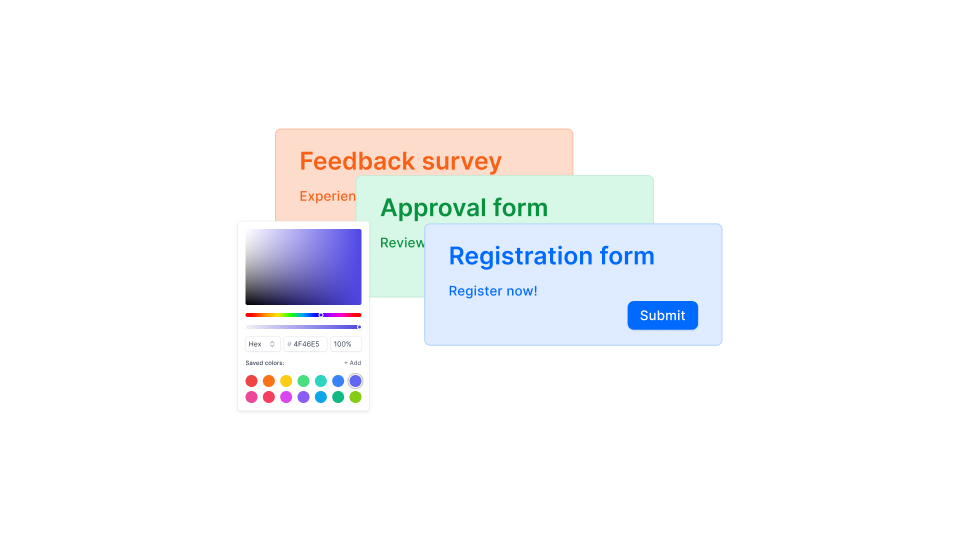
Forms are often the first thing visitors interact with on your site. If they look out of place, you lose people before they even start. This update gives you the controls to make your forms feel like they belong, anywhere you embed them.
Make it look native
Corner radius consistency: The "Round" corner setting now applies uniformly across both fields and buttons. Before this fix, switching to "Round" would round the buttons but leave fields with a different radius, a subtle but noticeable mismatch. That's gone. Everything rounds together now, across all field types.
Answer box background color & transparency: You can now set a custom background color for input fields, with full transparency control. Want fields that blend into your page? Make them transparent. Want them to match a specific brand color? Set it directly. By default, the behavior stays exactly the same as before, but the control is yours when you need it. One thing to know: if you change your Answer Color, the Answer Box Color resets to its auto-generated default. If you then manually set it again, your custom value sticks, until the next Answer Color change.
Font size options (A1, A2, A3): Three global font size presets. A2 is the current default. A1 scales everything down, A3 scales everything up, and all typography (titles, questions, answers, button text, section headers) scales together proportionally. Particularly useful when embedding forms inside smaller containers or larger hero sections.
Make it shorter
Multi-field rows: You can now place up to 3 fields per row. Each field gets a width option, 33%, 50%, 66%, or 100%, and fields arrange themselves into rows automatically based on available space. Put first name and last name side by side. Stack three short fields across. Shorten your forms without removing anything. A few things to know: this applies to Classic Forms only, certain structural fields (Matrix, Table, Repeating Section, and a few others) stay full-width, and on mobile everything defaults to one field per row , responsive behavior there is unchanged.
Inline choices: Single choice and multi choice fields now support a Wrap layout option. Instead of stacking one option per line, options appear inline and wrap based on form width. Shorter forms, less scrolling, same clarity.
Make it fit
Padding & form width controls: New controls let you set vertical spacing between fields and a custom total form width. These are the two settings that make the difference between a form that looks awkward inside a sidebar and one that fits like it was designed for the page. Form width doesn't apply on mobile, responsive behavior there stays unchanged.
If you've been holding onto forms in the legacy dashboard, you can now migrate them to the new experience with one click. Migrated forms will appear in both the old and new dashboards during your transition. Also your forms UI will not change, so there's no disruption to existing workflows. When you start editing the form in the new dashboard, it will ask you to migrate it to the new forms UI version.
What gets migrated:
What to know:
See how to migrate forms → View forms eligible for migration and start your transition.
As always, we'd love to hear what you're building and what would make Formaloo more useful for your workflow. Drop us a note at support@formaloo.com or share feedback directly in the app.