
Build your brand once
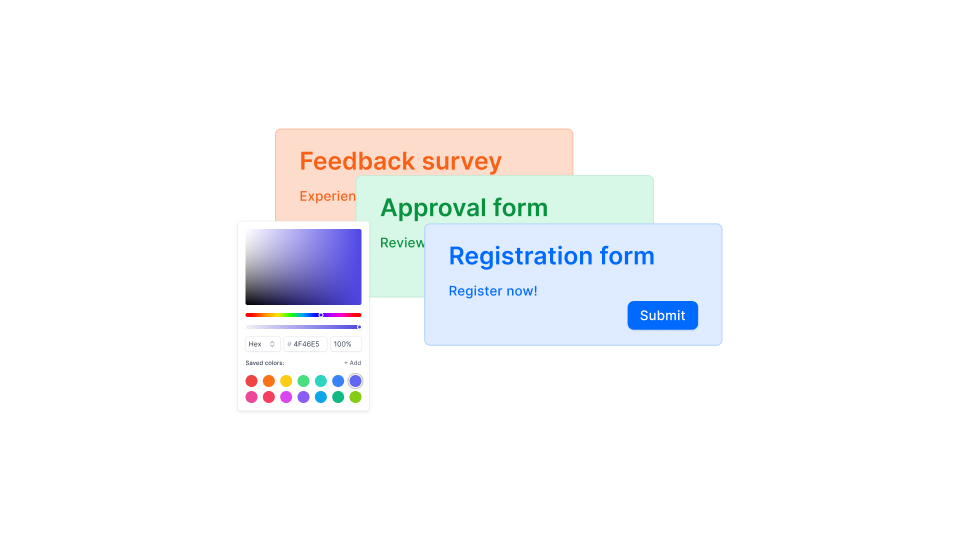
Design configuration used to be one of those silent time sinks in Formaloo. Every new form — same colors, same font, same logo, same custom CSS — set up from scratch. For teams managing dozens of forms, that adds up. This release addresses it properly.
Themes: your workspace design system
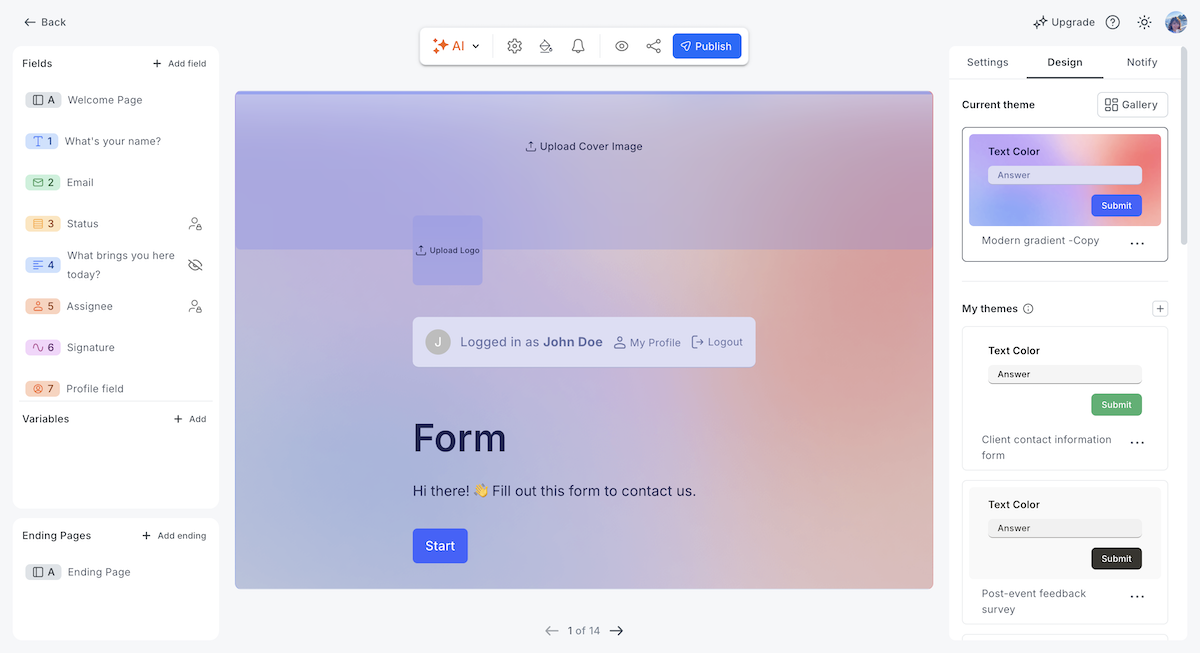
Formaloo now has a workspace-level Themes system. A theme is a complete design kit: form type and layout, form width, spacing between fields, color palette, font and font size, corner roundness, background image, progress bar settings, logo, default cover image, and custom CSS. Create a theme once, attach it to any form, and when you update the theme, every connected form reflects the change instantly.
Every new form requires a theme. There is no more standalone per-form design configuration — all design changes update the theme. When you edit a shared theme, Formaloo tells you how many forms it's connected to and gives you two options: continue editing (which updates all of them at once) or duplicate and edit independently. Deleting a theme requires you to reassign its forms to a replacement first.
The Design tab inside the form editor now has two sections: My Themes, which shows all your workspace themes with full create, edit, duplicate, rename, and delete options, and a Gallery of pre-built system themes you can apply directly or duplicate and customize.
Agencies can create a separate theme per client and apply it across all forms for that client. Update the client's brand — one change updates every form.
What changes:
- Every new form must attach to a theme — all design settings are now theme-level, not form-level
- Each theme covers: form type, layout, width, field spacing, color palette, font, font size, corner roundness, background image, progress bar, logo, default cover image, and custom CSS
- Create, edit, duplicate, rename, and delete themes from the Design tab inside the form editor
- Editing a shared theme updates all connected forms instantly; Formaloo shows how many forms are affected before you save and offers a "Duplicate & Edit" path for isolated changes
- The Design tab includes a Theme Gallery with pre-built system themes to apply or customize
- Legacy forms created before this release continue to work exactly as before and prompt you to convert to a theme on your next design change
The add-ons page
Formaloo now has a Usage page, a single place to see what your workspace is consuming and to top up exactly what you need, without changing your plan.
The page shows your usage across every key dimension: forms created, monthly submissions, team member seats, external user seats, AI credits, custom email credits, custom PDF credits, cloud storage, and data enrichment rows. Each item shows how much you've used and your current limit, side by side, with a visual progress bar. For monthly limits like submissions, the counter reflects the current period only.
When you need more capacity, you can purchase an add-on directly from the page. Available add-ons: Whitelabel features (custom domain, custom CSS, badge removal from forms and apps), extra cloud storage, additional team member seats, additional external user seats, AI credits, custom email credits, and custom PDF credits. Credit-based add-ons — AI, email, and PDF — don't expire. They stay in your account until you use them.
The Usage page is visible to all workspace members. Only workspace admins can make purchases.
What changes:
- A new Usage page is now available in the dashboard navigation, next to the upgrade option
- Tracks usage across forms, submissions, team seats, external users, AI credits, emails, PDFs, storage, and more — with visual progress bars per metric
- Add-ons available to purchase: Whitelabel, extra storage, team seats, external user seats, AI credits, email credits, PDF credits
- Credit-based add-ons (AI, email, PDF) do not expire
- Free plan users can view the Usage page but cannot purchase add-ons
- Only workspace admins can make purchases; non-admins see a locked state with a clear explanation
A better way to build PDF and email templates
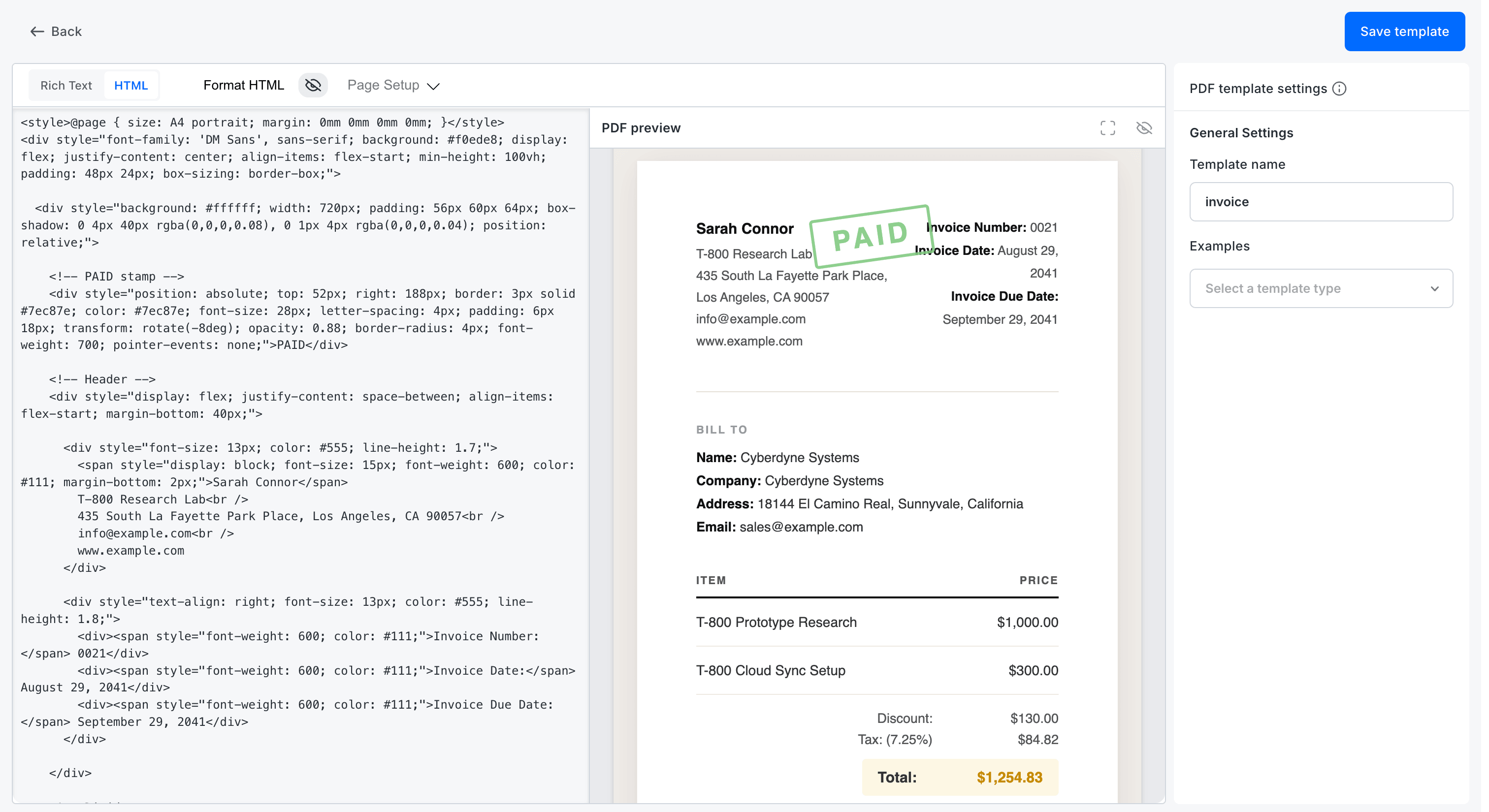
The PDF template editor now works in two modes: Rich Text and HTML.
In HTML mode, you write or paste raw HTML on the left and see a live PDF preview on the right. The preview updates as you type, renders your full design — fonts, colors, images, dynamic fields, and layout, and marks page breaks with blue lines so you know exactly where the PDF will split.
The HTML mode makes AI-assisted template creation practical. You can prompt ChatGPT, Claude, or any AI tool to generate an HTML certificate, invoice, report, or agreement for you, paste the output directly into the editor, and watch it render in the preview. No PDF design tool required.
Text editor improvements also ship across form descriptions, field descriptions, content blocks, section fields, and form ending pages.
What changes:
- The PDF template editor now has an HTML editing mode alongside Rich Text, with a live side-by-side PDF preview
- The preview renders in real time as you edit, showing the final PDF output and page breaks (blue lines)
- HTML templates can be generated with AI tools and pasted directly into the editor
- Text editor improvements apply across form descriptions, field descriptions, content fields, section fields, and form ending pages
Invisible fields
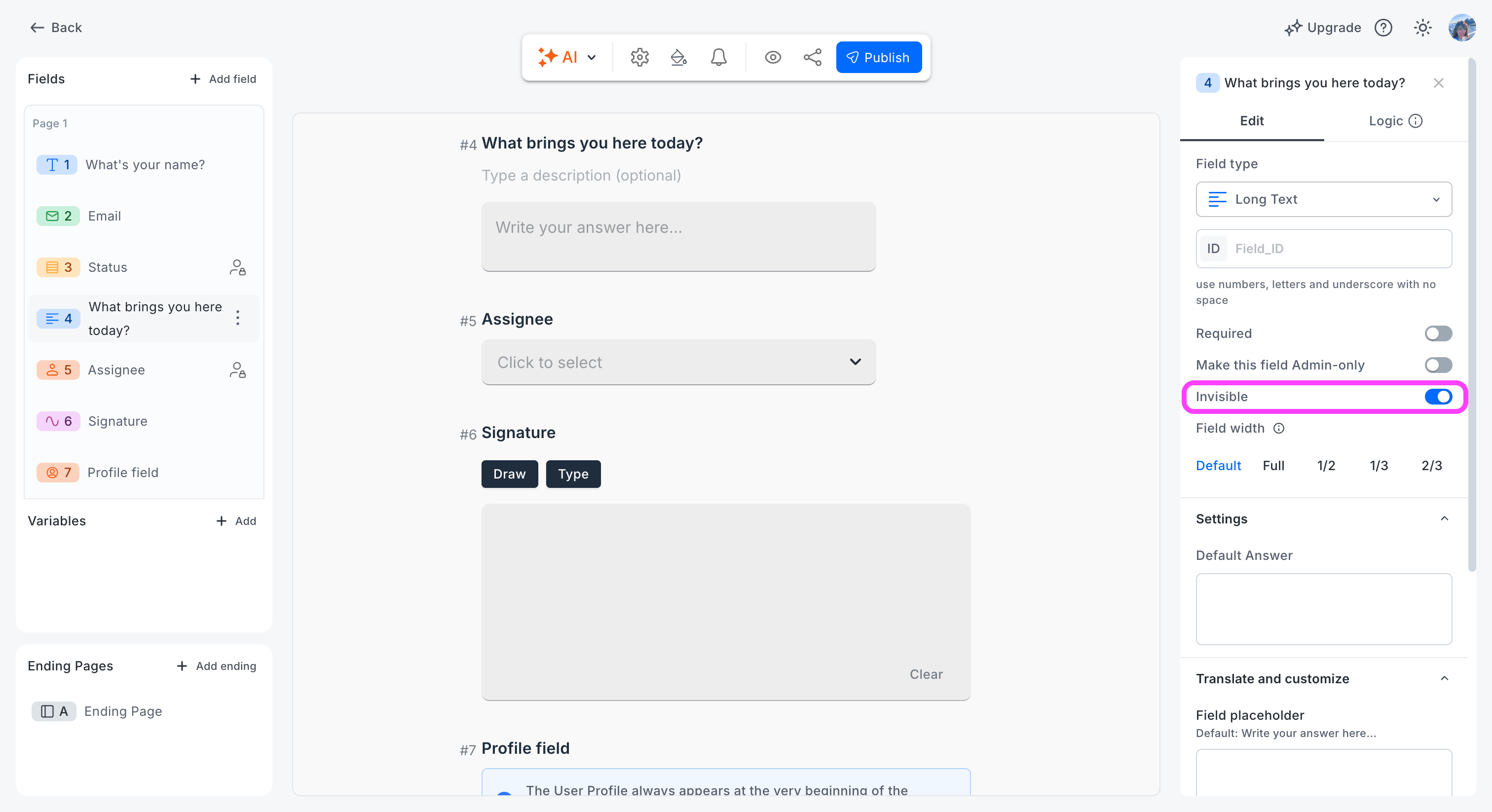
Every field type in the form editor now supports an "Invisible field" toggle. When enabled, the field stays completely hidden from respondents but remains fully active everywhere else: it receives values via URL parameters or answer piping, participates in logic rules, stores data in data blocks, and can be marked as required or admin-only. The form editor shows a visual indicator on any field set to invisible so builders always know what respondents can and can't see.
The invisible state is absolute, it always takes priority, even if a logic rule attempts to show the field. This is intentional: if you mark a field as invisible, it stays invisible regardless of any show/hide conditions.
Useful for: UTM and campaign tracking fields, internal IDs, pre-filled scoring variables, referrer fields, metadata, and any field you want to keep active without surfacing to respondents.
What changes:
- All field types now include an "Invisible field" toggle in the field settings panel
- Invisible fields are hidden in the form UI but remain active for logic rules, URL pre-filling, answer piping, and data block storage
- The form editor displays a visual indicator on all invisible fields
- The invisible state overrides show/hide logic — the field stays hidden even if a logic rule attempts to reveal it
Improvements
- Email and PDF template lists now sort by creation date, with the most recently created templates at the top.
- When you create a new email template directly inside the advanced logic builder, it automatically becomes the selected template in that logic step — no need to re-select it manually after saving.
- PDF templates selected inside a logic rule now show a preview and quick-edit option, so you can confirm the right template is in use without leaving the logic setup.
- Auto-generated PDF tables using
@answeredand@results_tablepiping parameters now render with consistent formatting: bold question text, readable row spacing, and sizing that matches the default printable template.
Better experiences
Forms
- Phone fields on mobile now preserve the country code when auto-fill is used — the full number with the correct prefix goes through as entered.
- Logic rules tied to Checkbox fields now trigger reliably every time a box is ticked, including calculations that add or update variable values.
- Forms set to the 1QAT theme now display in 1QAT when embedded via script — the theme is respected in embedded contexts, not just the direct form link.
- Custom CSS targeting
.formaloo__progress-bar-containernow applies correctly in published forms, including position and sizing properties. - Embedded forms now show their loading indicator at the form's position on the page, not at the top of the browser window.
Data & analytics
- Exporting responses now works from View mode — go to Options > Import & Export and both "Export all responses" and "Export filtered responses" work as expected, regardless of which mode you're in.
- Data block filter options now include all indexable field types: variables, lookup fields, hidden fields, email fields, phone fields, rating fields (NPS, CSAT), date and datetime fields, profile fields, linked row fields, and more.
- Data blocks requiring email verification now show a clear prompt explaining that verification is needed, instead of a loading animation that never resolves.
PDFs
- The Custom PDF section in Apps & Integrations now displays with a clean, properly aligned layout.
- Formula variables that use addition now display the correct total when piped on the form — the displayed value matches what is saved in the responses table.
Integrations
- Email template deep links now open the specific template you shared, not the generic Email Template integration page.
- Workspace admins can now save email templates using a custom SMTP server configured by the workspace owner.
Account & settings
- New data blocks created alongside a new form now save reliably every time.
🎁 Win an iPad Air 2026 — write us a review
We're celebrating our community with a giveaway, and everyone who participates gets something.
Leave an honest review on G2, Capterra, or Product Hunt, then submit your review link at formaloo.formaloo.me/ea8ey.
Every approved review earns you one free year of Formaloo Pro and a $10 donation to Relief International on your behalf. One lucky reviewer also wins a brand new iPad Air 2026 (M4) — drawn live on YouTube on May 5th. Review on all three platforms and get three entries.
Deadline to submit: May 4th.
We ship every week. Follow our changelog to stay up to date.








