Making forms is now much more easy breezy 🍃

Setting up a portal used to mean one uncomfortable choice: leave it open to anyone with the link, or restrict it to a list of emails you manage by hand. If you wanted to limit access to people from a specific organization, say, a corporate domain, you had to manually approve every signup or build workarounds outside Formaloo. This release closes that gap properly.
Advanced portal signup: domain rules, magic links, and access control
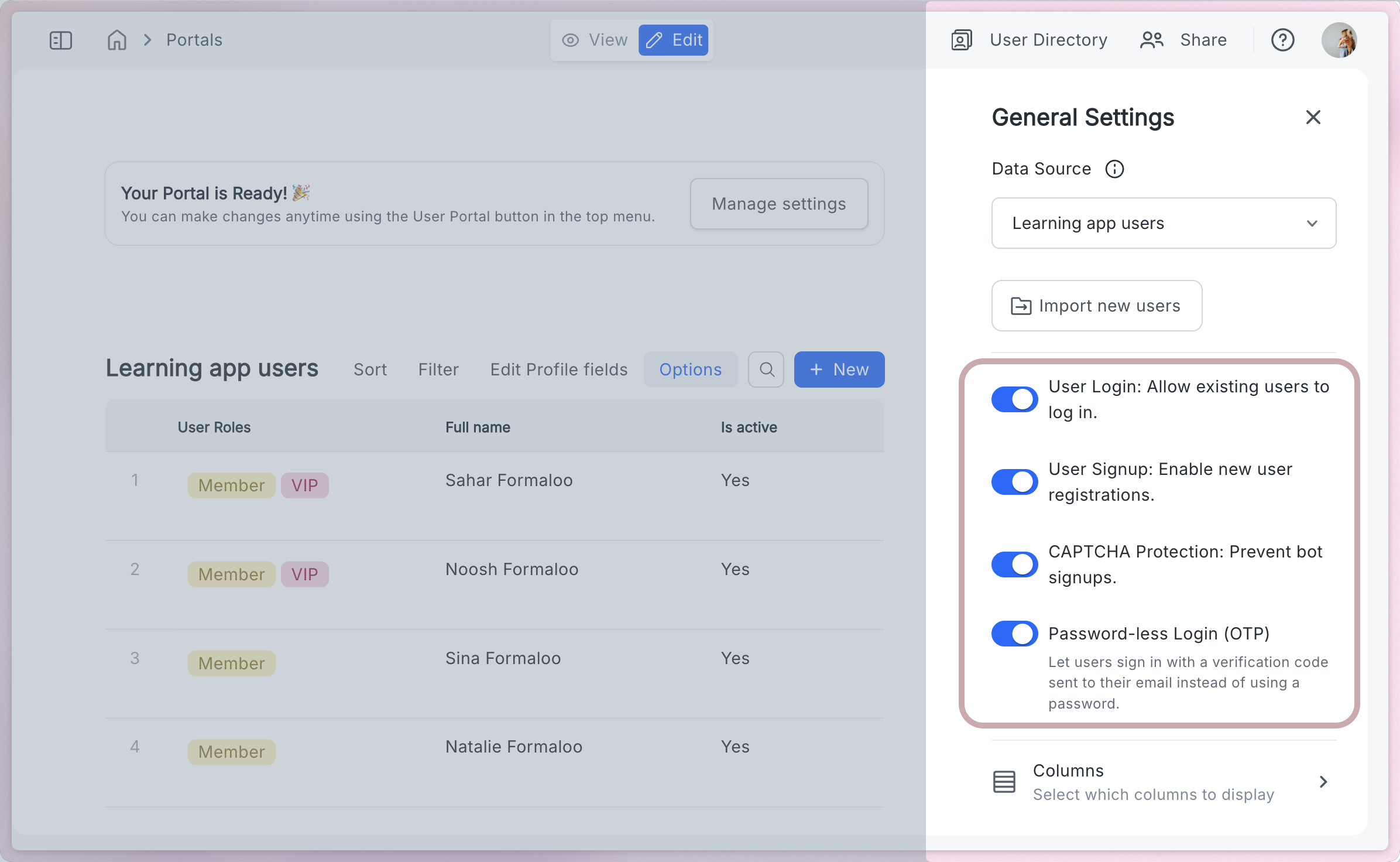
Portals now support three new signup controls, and they work together.
First, you can define acceptable answer rules for the email field on your portal's signup page. That means you can restrict signups to specific email addresses or entire domains using regex patterns. A company intranet portal can require @yourcompany.com. An education portal can require .edu addresses. Anyone who tries to sign up with a non-matching email sees a clear error and never gets in.
Second, Magic Link sign-up is now available. Previously, Magic Link only worked for existing portal users logging back in. New users had no path to register that way. Now they do. A new visitor enters their email, receives a one-time link, and lands inside the portal as a registered member, no password, no separate invite step.
Third, these two features compose. You can require a domain-restricted email AND deliver access via magic link. That combination gives you a lightweight but controlled signup flow: only the right people can register, and they do it without a password.
What changed:
- Portal signup now supports Acceptable Answers validation on the email field
- Custom regex patterns can be used to restrict signups by email domain or pattern
- Magic Link sign-up is now available for new users registering to a portal (previously only supported for existing users logging in)
- Non-matching emails are blocked at signup with a clear validation message
- Magic Link and email restriction rules can be used together in the same portal
- Configuration is available in the portal settings under the signup options
Answer piping menu: type @ and pick
Answer piping has been in Formaloo for a long time. The problem was discoverability. To pipe a field's value into an email subject, a PDF, or a form message, you had to know the exact field ID, remember the syntax, and type it correctly. One typo and the pipe broke silently.
Now, typing @ in any supported editor opens a suggestion menu. It lists every field in your form with a valid ID, plus all system variables (submission date, respondent email, payment status, and others). Start typing after @ and the list filters in real time. Arrow keys or a click inserts the value. The full @field_id token lands exactly where your cursor was.
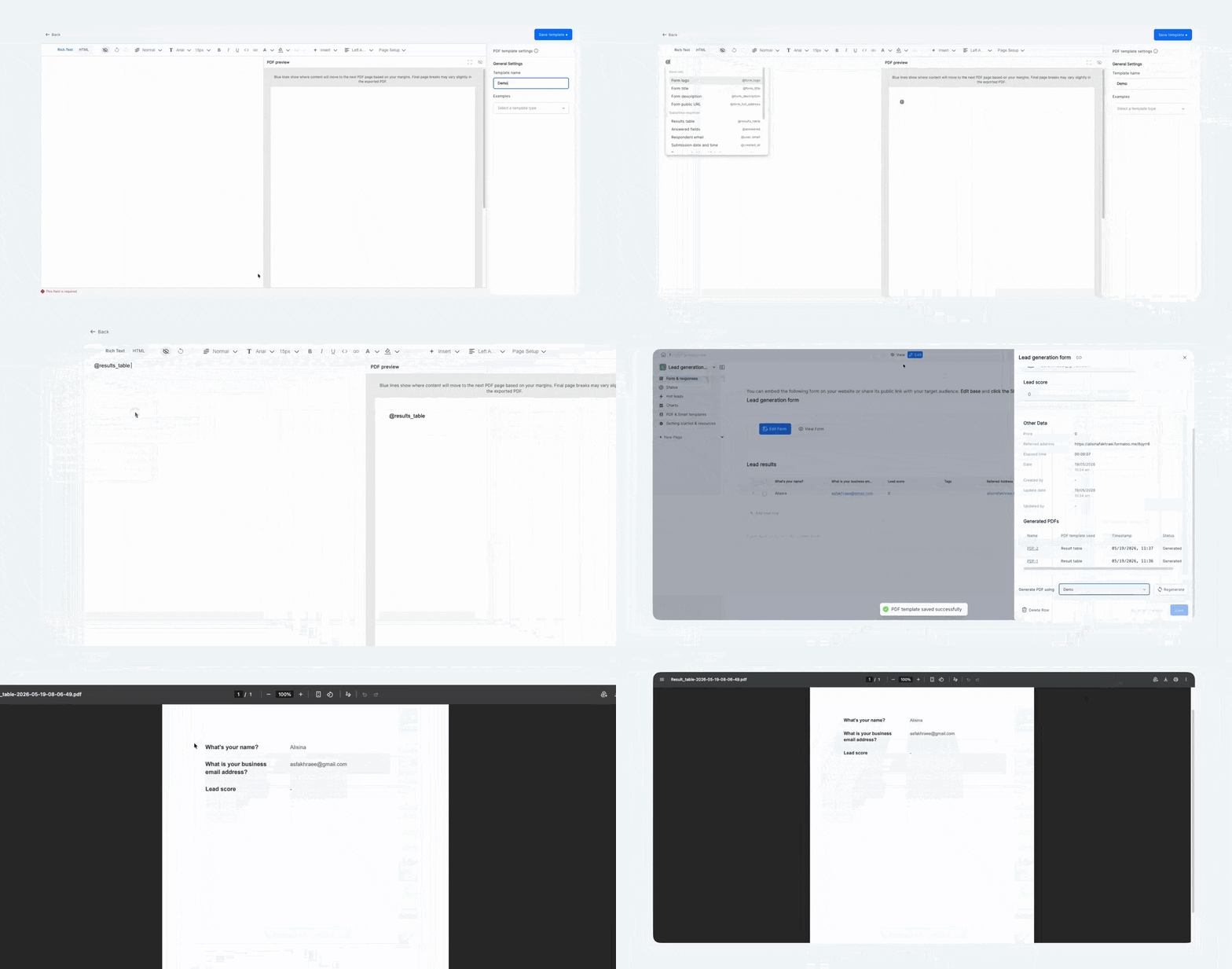
The menu works across every surface where answer piping is supported: form field titles and descriptions, the ending page, email templates, PDF templates, and AI prompt boxes. In email and PDF editors where no specific form is loaded, it shows the predefined system variables only.
What changes:
- Typing @ in a supported editor opens the answer piping suggestion menu near the cursor
- The menu lists all form fields with valid IDs plus predefined system variables
- Real-time filtering as you type after @ matches both field label and field ID
- Arrow key navigation and Enter to insert; Escape closes without inserting
- Clicking outside or selecting an item closes the menu
- In form editors and AI boxes, field-specific IDs from the current form appear in the list
- In email and PDF editors, only predefined system variables appear (no form context loaded)
- Fields without an assigned ID do not appear in the menu
- Partial text like @na is fully replaced when you select a result (e.g., inserts @name)
Magic Create: upload a PDF or image, get a form
Starting from scratch is the slowest part of building a form. If you already have a paper form, a PDF questionnaire, or even a photo of a printed document, you now have a faster path.
Inside Magic Create, there is a new upload section above the AI prompt. Upload a PDF, Word document, or image (PNG, JPG, JPEG), and Formaloo AI parses it, extracting field labels, input types, sections, and structure — then generates a ready-to-edit form. You can add a text description alongside the file to give additional instructions, or use the file alone.
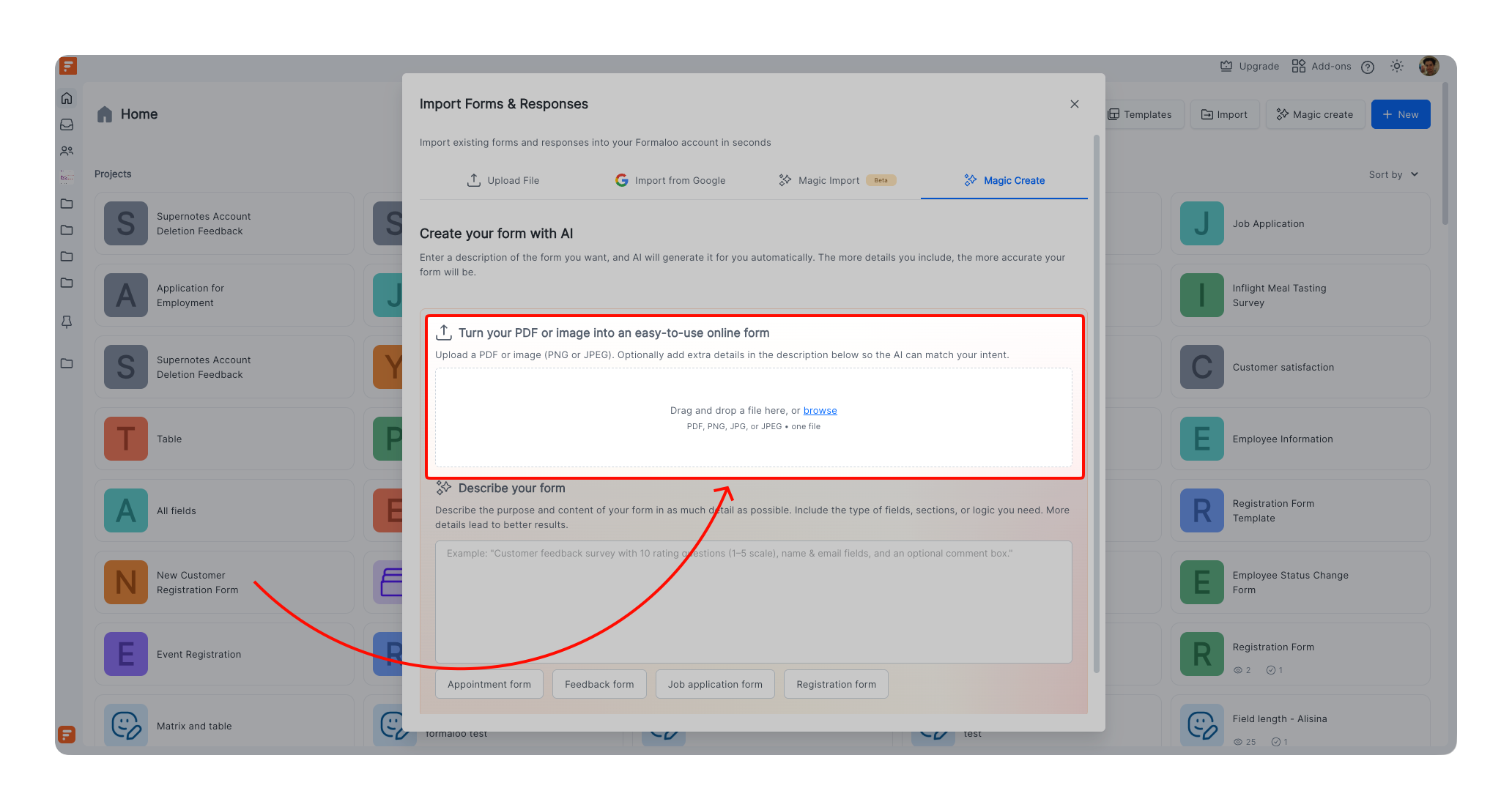
If the file cannot be parsed, a fallback message prompts you to add a description to guide the AI. The generated form opens directly in the form editor.
What changes:
- Magic Create now includes a file upload section (drag and drop or file picker)
- Supported formats: PDF, DOC, DOCX, PNG, JPG, JPEG
- File upload can be used alone, with a text description, or both
- Formaloo AI parses the file and generates a structured, editable form
- Text instructions take priority if they conflict with the document content
- If the file cannot be parsed, a fallback message is shown
- Single file upload supported in this release
Improvements
- Custom colors for choice field options in data blocks. You can now pick the color for each choice option's label in data blocks. Previously colors were assigned automatically, which sometimes produced counterintuitive results (red for "approved", green for "rejected"). Open the field settings and set the color per option.
- Custom font size in PDF editor. The 20px font size cap in the PDF template rich text editor has been removed. You can now type any font size directly into the size input field.
- Enter key advances to the next field in classic forms. Pressing Enter in a classic form now moves focus to the next question. Multiline text fields are not affected.
- "Other" choice input saved with autosave and resume later. When a form has autosave and the resume later button enabled, text entered in the "Other" option of a choice field is now saved and restored correctly when the respondent returns.
- Answer piping for table fields in PDF HTML editor. The HTML editor in the PDF template now supports answer piping for table fields. Table responses can be referenced and rendered in generated PDFs.
- Rectangle logos in forms. Forms now support non-square logos. Both square (1:1) and wide/rectangular logos render correctly in the form editor and live form view.
- Mark draft rows as Completed. When partial submit is enabled, form admins can now change a row's status from Draft to Completed directly in the Edit row sidebar. Previously there was no way to do this.
- Webhook inactive alert emails. When a webhook integration becomes inactive, Formaloo now sends an email notification to the workspace owner. Previously, webhooks failed silently.
Better experiences
Forms
- Country and city dropdown fields were showing as empty lists in live forms even when configured correctly. Fixed.
- Logo and cover placeholders were rendering with incorrect dimensions in form previews across different layout modes. Fixed.
Data & analytics
- "Other" choice submissions were not appearing in the edit row dialog of the result table. Fixed.
App UI
- The video block in app pages now takes the full content width. Previously it was rendering narrower than the page content area.
Integrations
- Integer variables set up as Number (Integer) type were displaying as decimals in email outputs (e.g., 1.0 instead of 1). Fixed.
Account & settings
- The tooltip icon in the Export all users row under Portal settings was rendering oversized. Fixed.
- The chatbot design was not inheriting the form's configured color palette. The chatbot interface now respects the form-level theme. Fixed.
We ship every week. Follow our changelog to stay up to date.